Integration with Messenger
Before Start
⚠ IMPORTANT: HeiChat AI requires Meta (Facebook) Business API integration.
Please note: You must have an approved Meta Business API account through the Meta Business platform.
Prerequisites:
- A verified Meta Business account
- A Facebook Public Page
Step 1: Getting Started with Messenger Integration
- Go to Shopify and install HeiChat: HeiChat Customer Service Bot
- Set up your HeiChat by configuring the app settings.
Step 2: Setting Up Meta (Facebook) Business Account and App
1. Create a Meta (Facebook) Business Account
-
Visit Meta Business Suite.
-
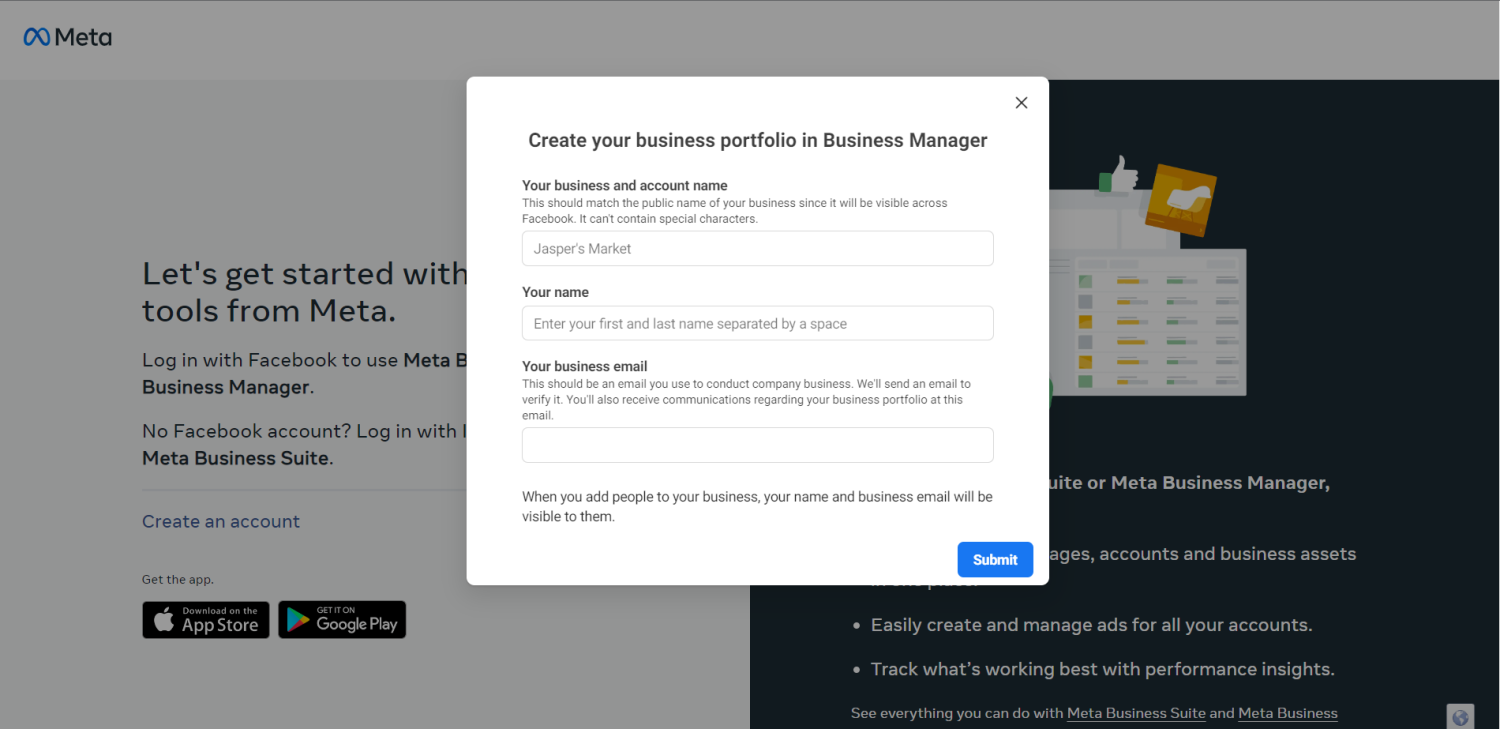
Enter your business name, your name, and work email address. Click Next.
-
Provide your business details and click Submit.
2. Create a new Meta (Facebook) App
-
Go to Meta for Developers.
-
Log in to your Meta (Facebook) Developer Account.
-
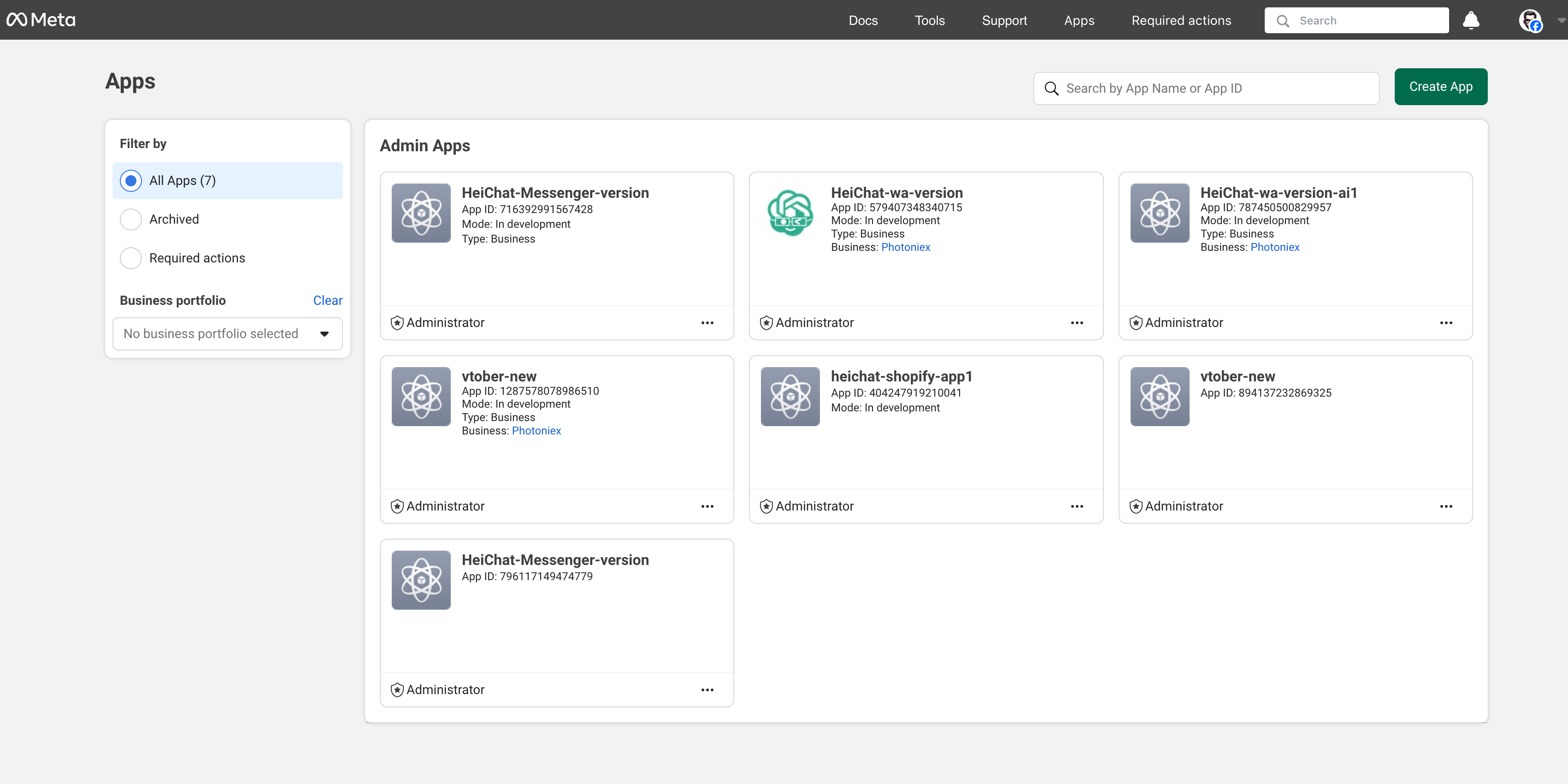
Select My Apps.
-
Click Create App.
-
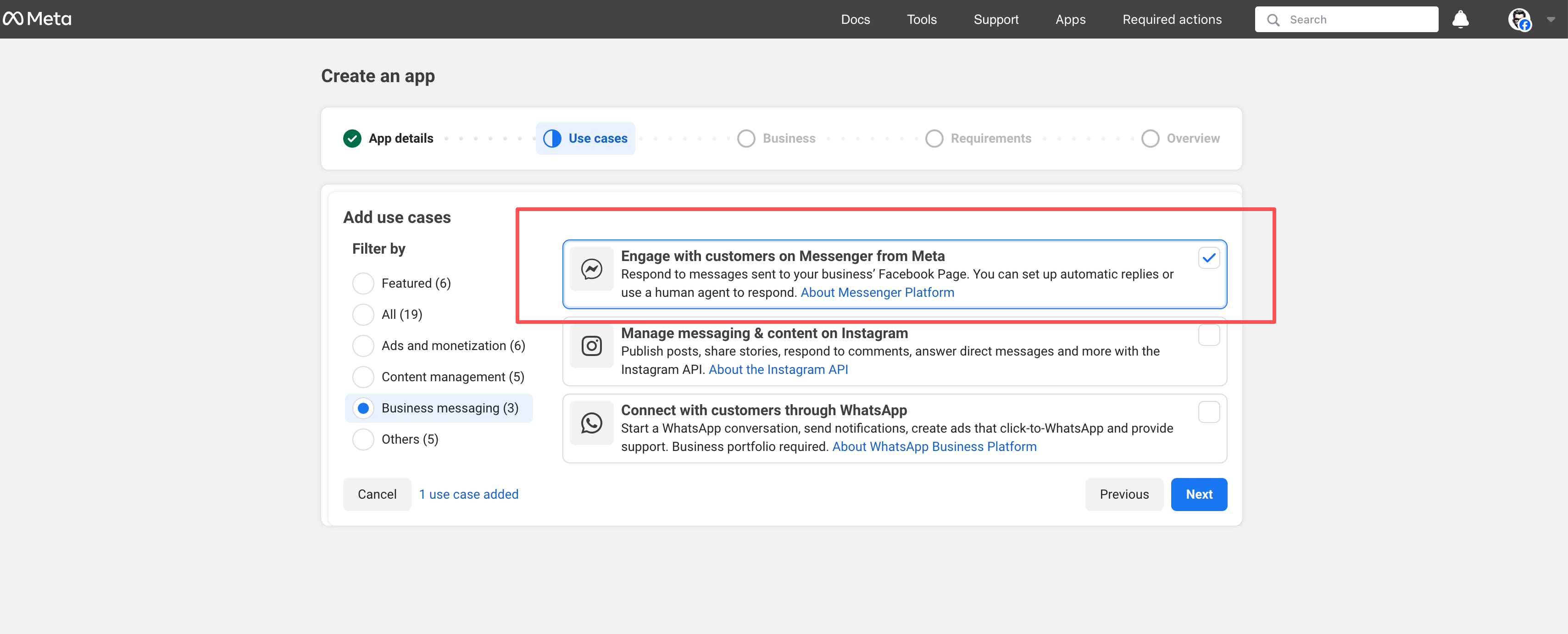
Choose User Case: "Business messaging - Engage with customer on Messenger from Meta" and click Next.
-
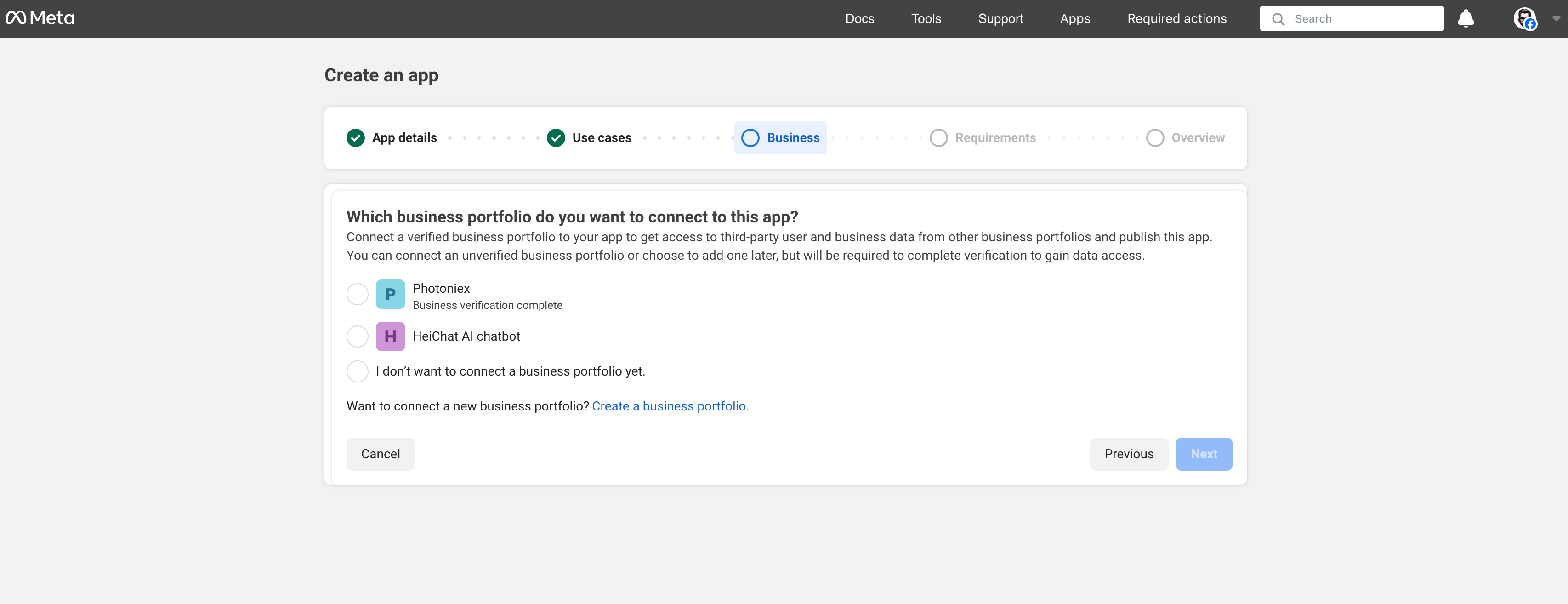
Choose a business portfolio you want to connect to this app (i.e., which Facebook page you want to link).
-
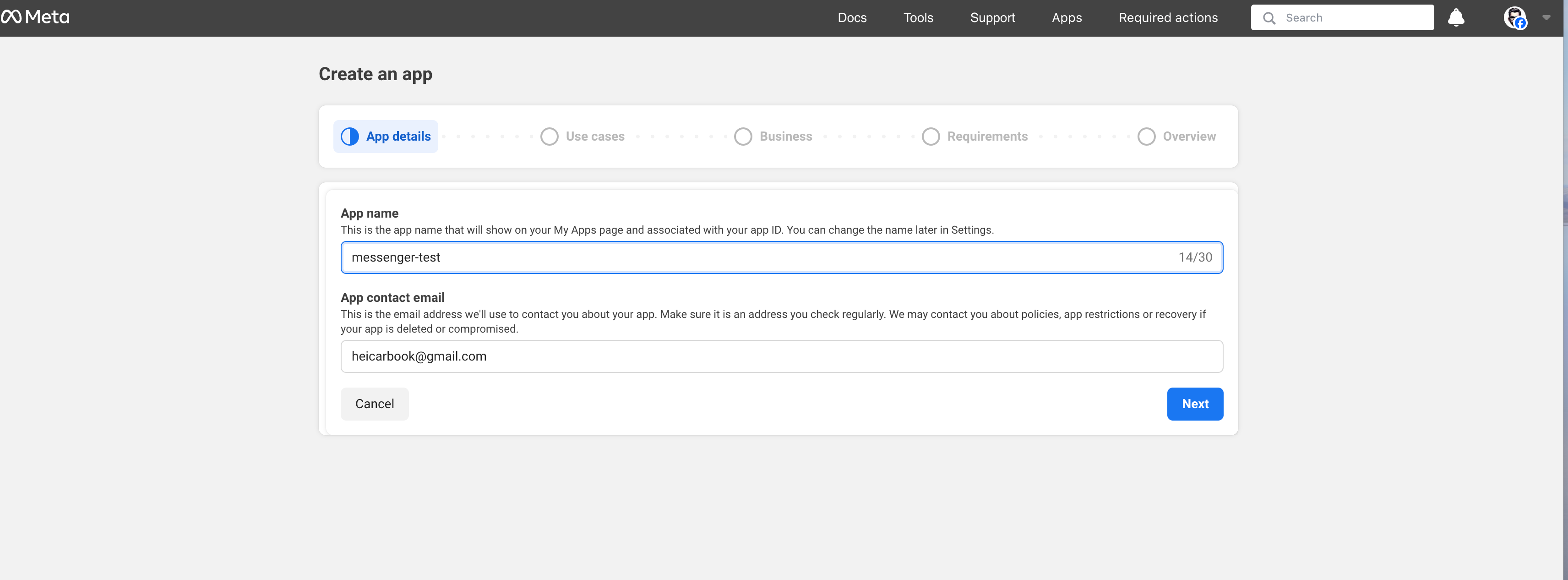
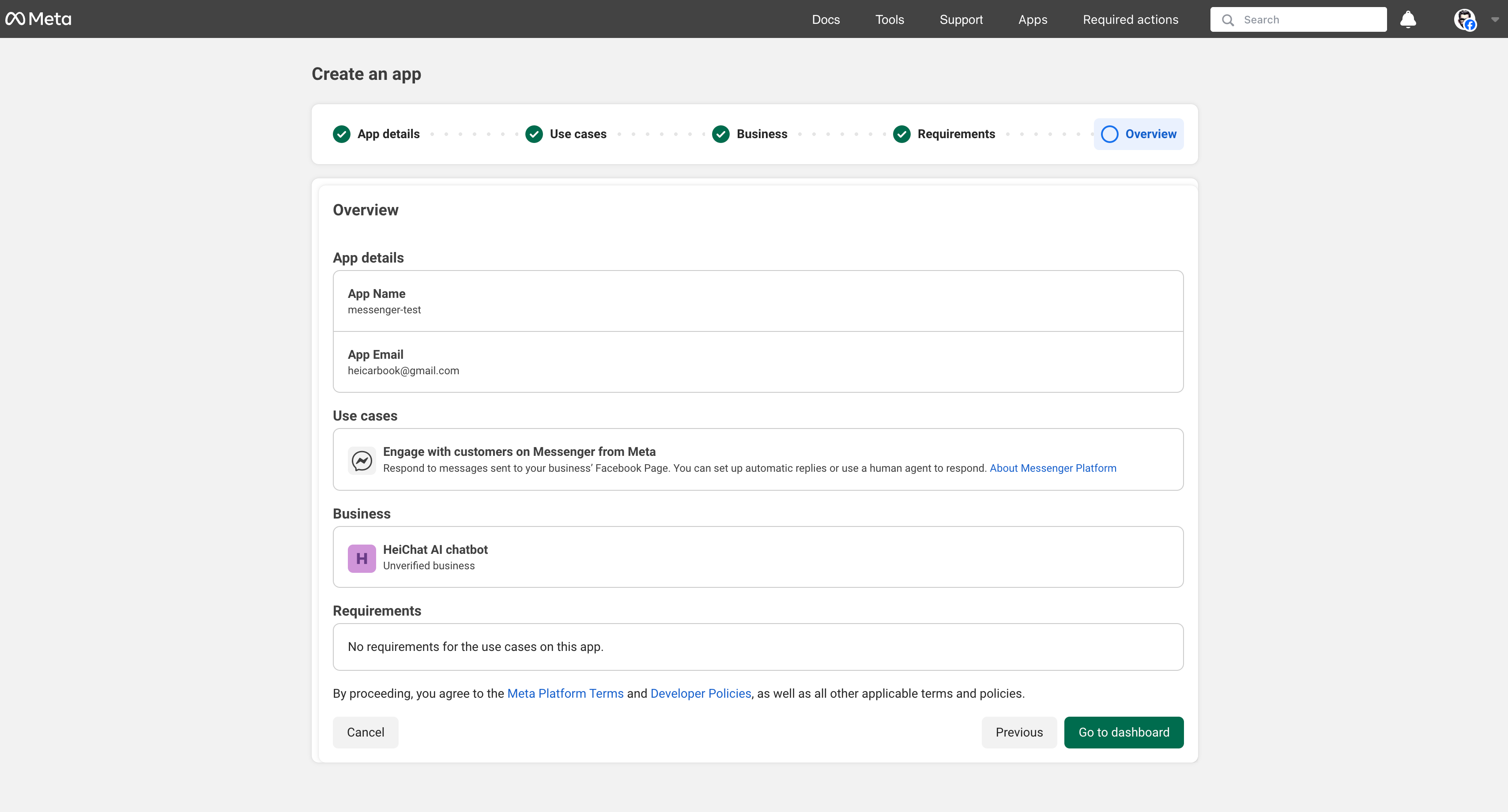
Overview app details: App Name, App Contact Email, Business Portfolio, and click Create app.
Step 3: Setting Up Meta (Facebook) App for Messenger Integration
1. Add Messenger to your Meta (Facebook) App
-
In the Developers Dashboard, choose your app.
-
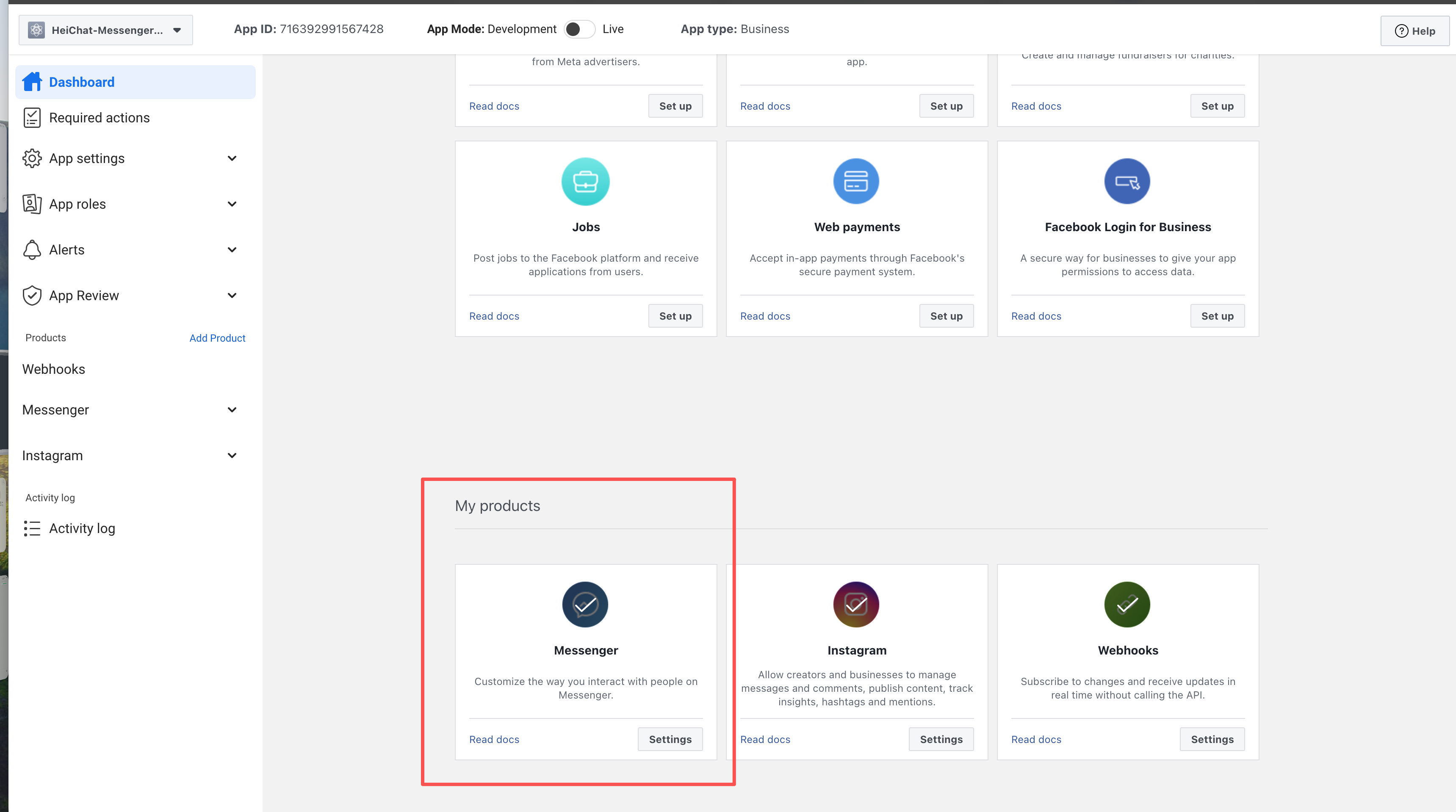
Locate Add products to your app in your app's dashboard tab.
-
Choose Messenger for setup.
-
Select your Meta (Facebook) Business Account (if not selected in step 2).
2. Configure Basic Settings
- Navigate to App settings > Basic from the sidebar.
- Set the Privacy Policy URL to:
https://heichat.net/help-center/privacy-policy - Save changes.
- Set App Mode to Live.
Step 4: Configure Messenger API Webhook settings
Verify Messenger Webhook Callback
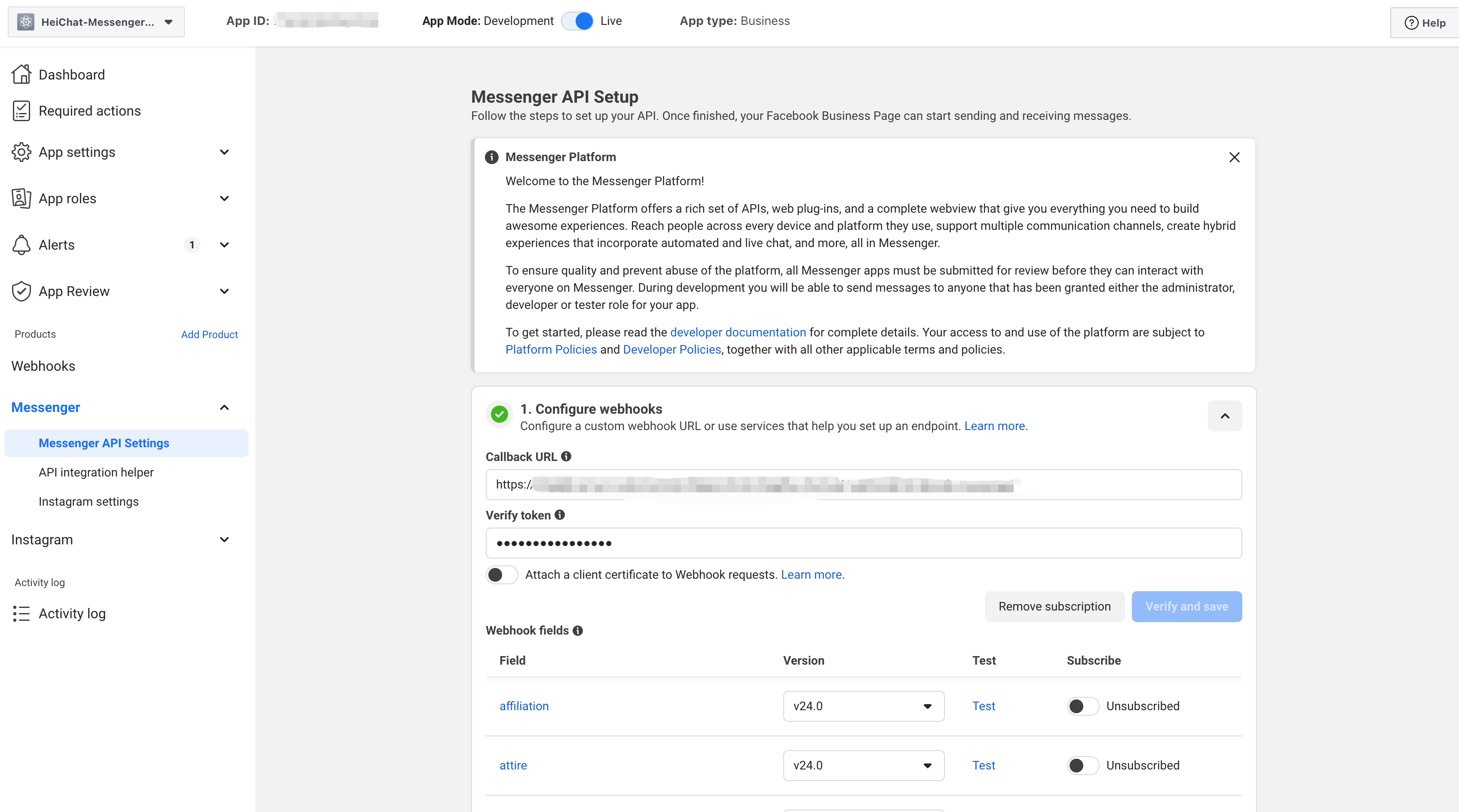
In the Meta Developer Dashboard, navigate to Messenger > Messenger API settings.
1. Configure webhooks
-
Copy the Callback URL and Verification Token from the HeiChat Messenger Integration page (or HeiChat email) to your Messenger Developer Dashboard.
-
Click Verify and save.
2. Configure Webhook Subscription Field
-
Under "Webhook Fields," click Manage.
-
Find the
messagesfield and subscribe to it by checking the box.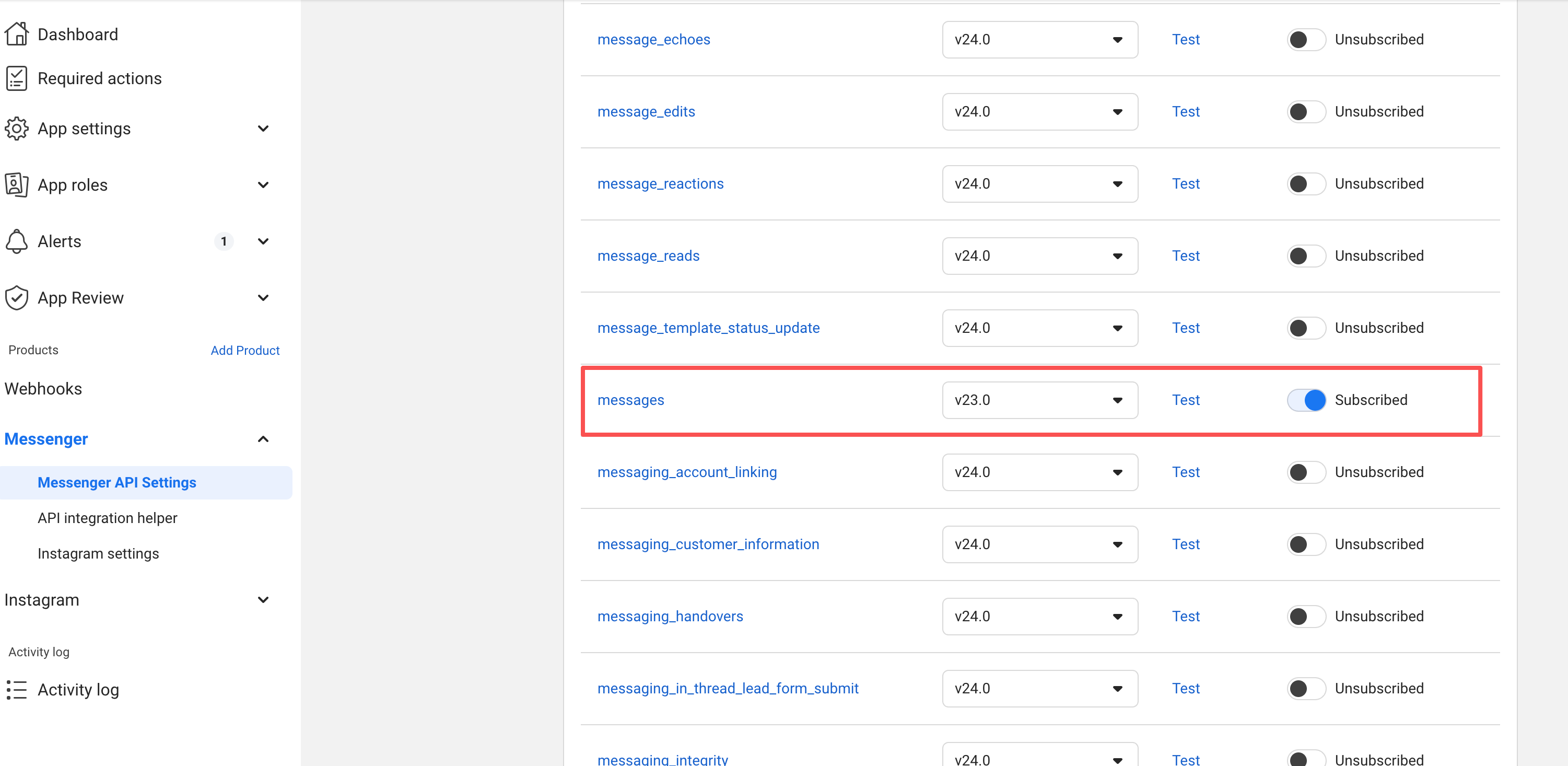
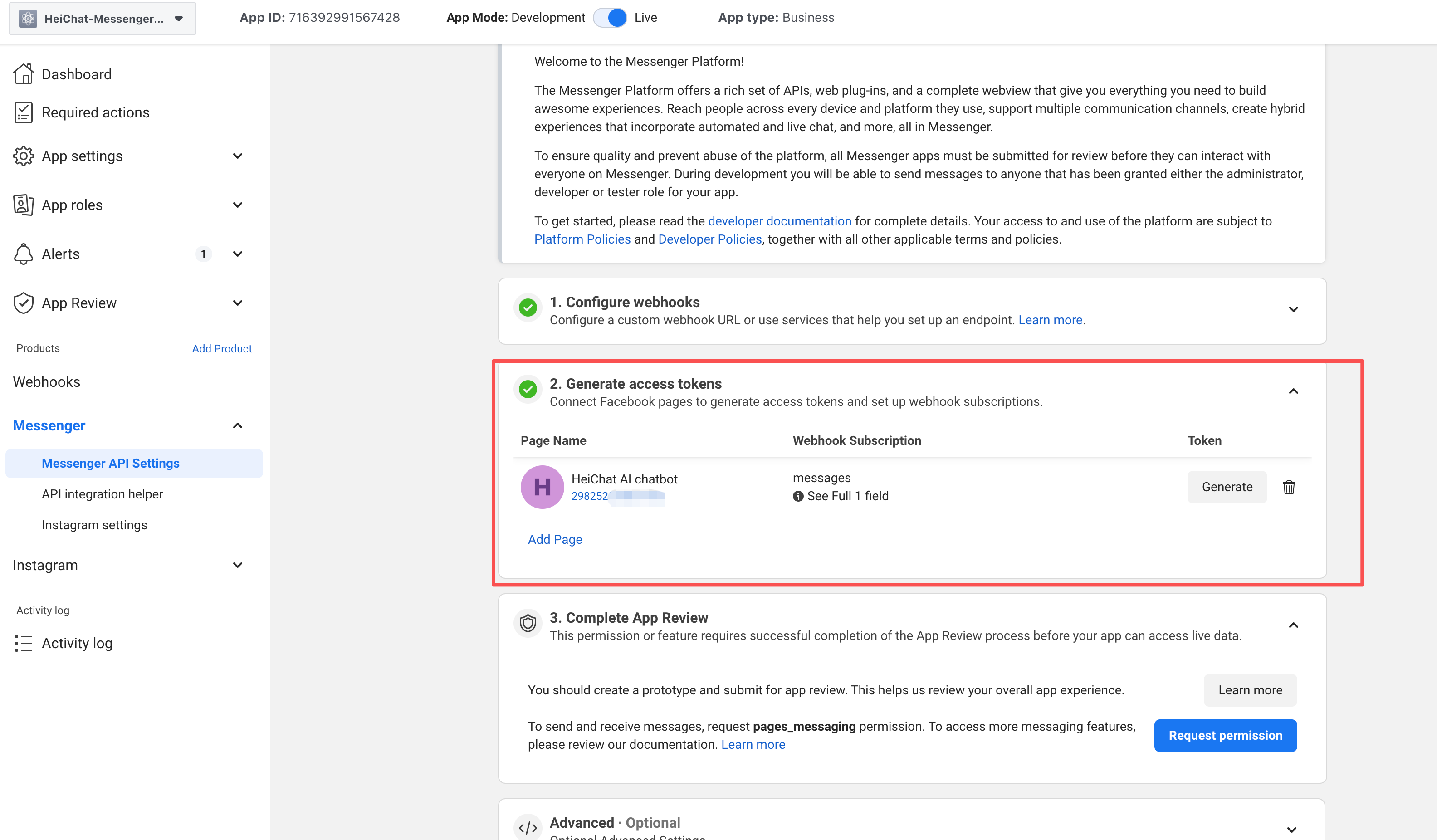
Step 5: Generate access tokens and get page ID
-
Choose a page to link.
-
Generate access token.
Step 6: Connect your Messenger account with HeiChat
Retrieve Messenger Account Information
-
Copy the page access token generated from Step 5.
-
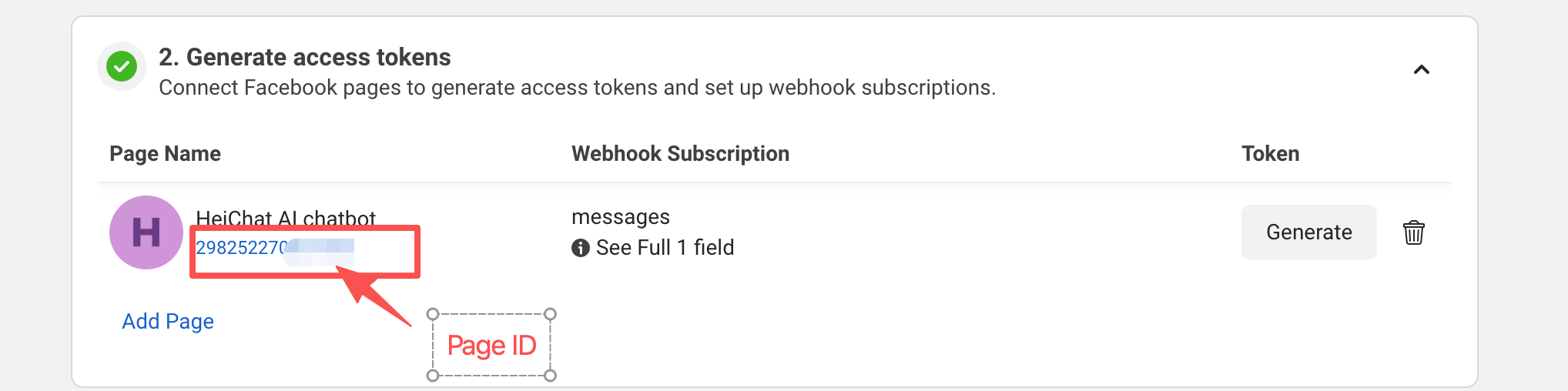
Copy your page id.
-
Paste them into the HeiChat backend and save.
If you have any problems, feel free to contact HeiChat's email: heicarbook@gmail.com